VMware ESXi 6.5 Install step by step
VMware ESXi 6.5 Install step by step
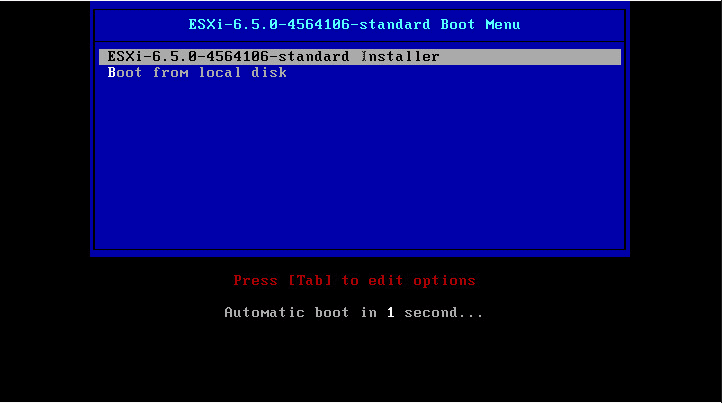
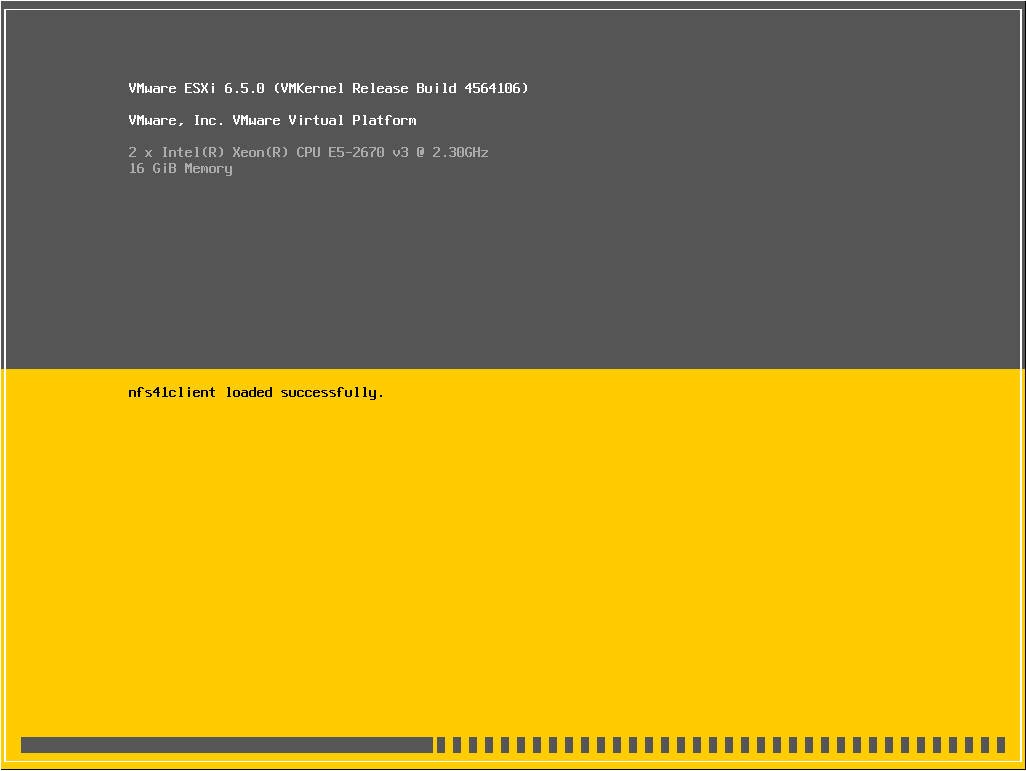
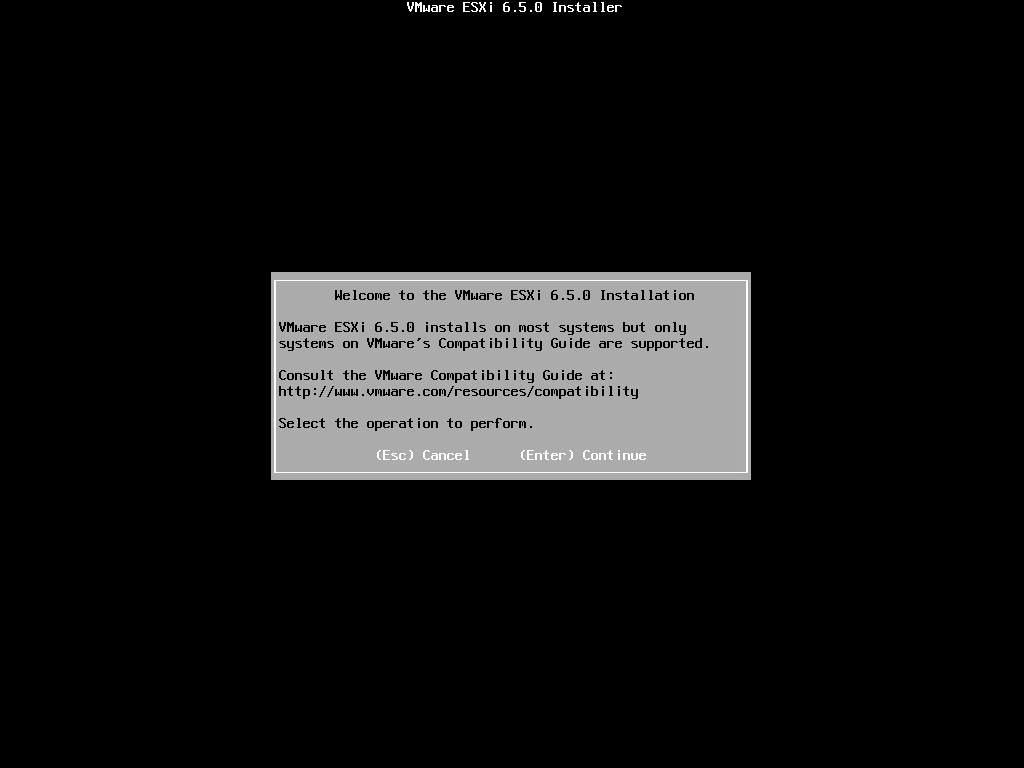
The installer begins with the familiar greeting.
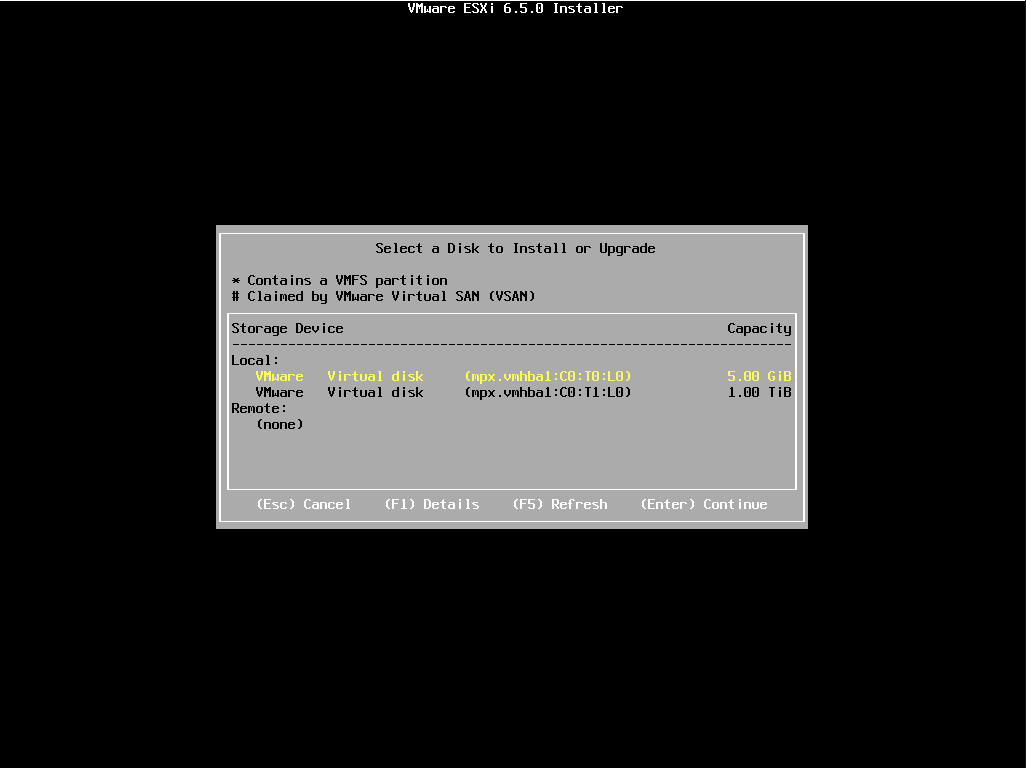
As before, we select the disk to install or upgrade.
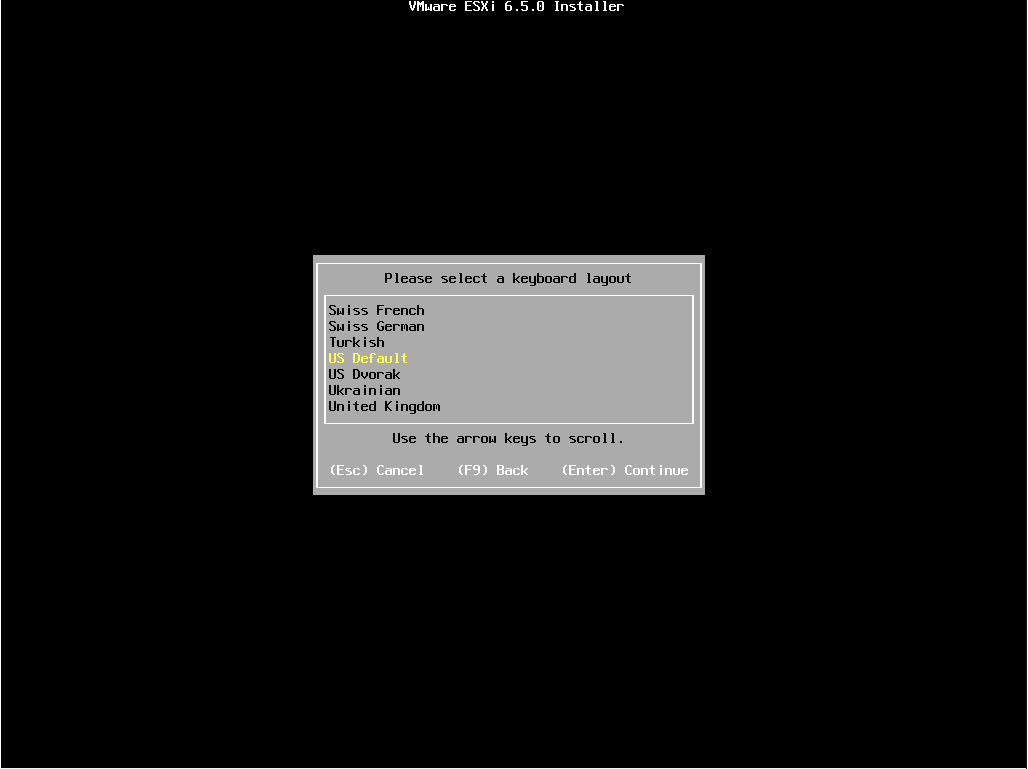
Next, we choose our language.
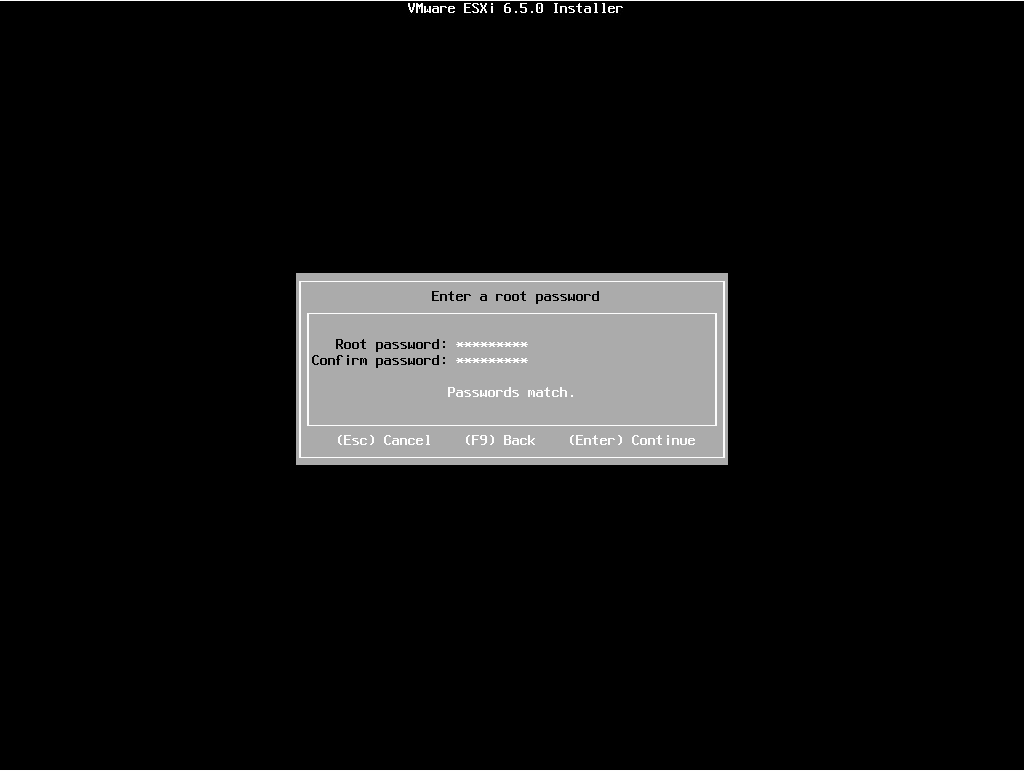
Setting the root password…
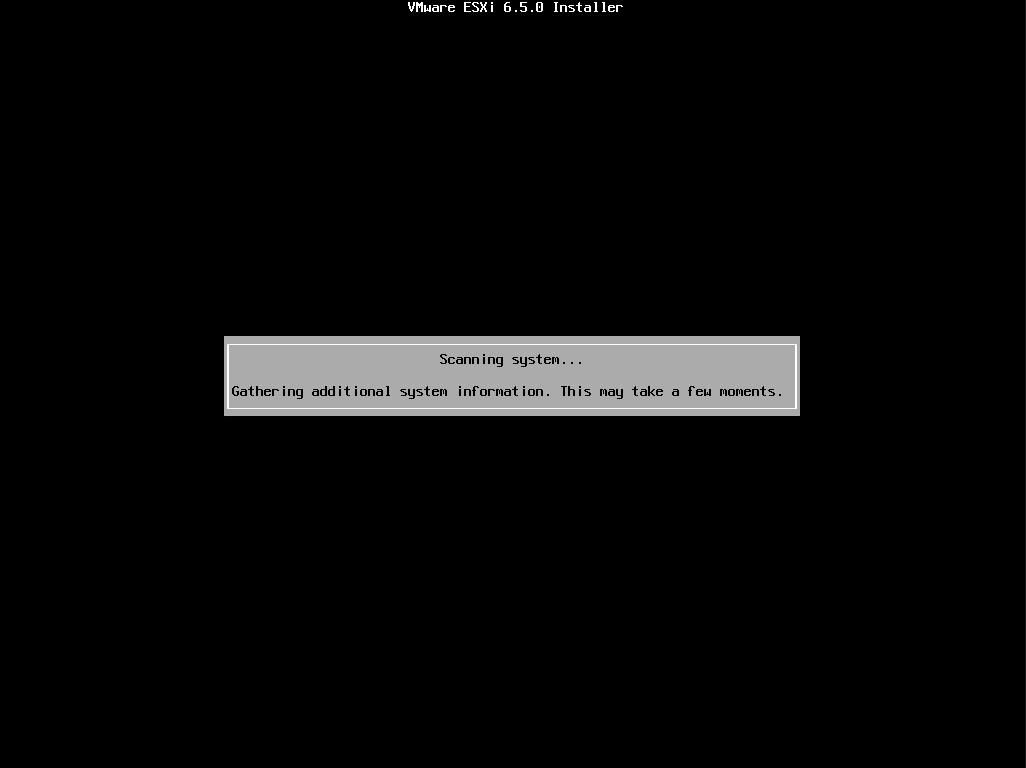
Scanning for components screen is next.
The disk is repartitioned with the install by pressing F11.
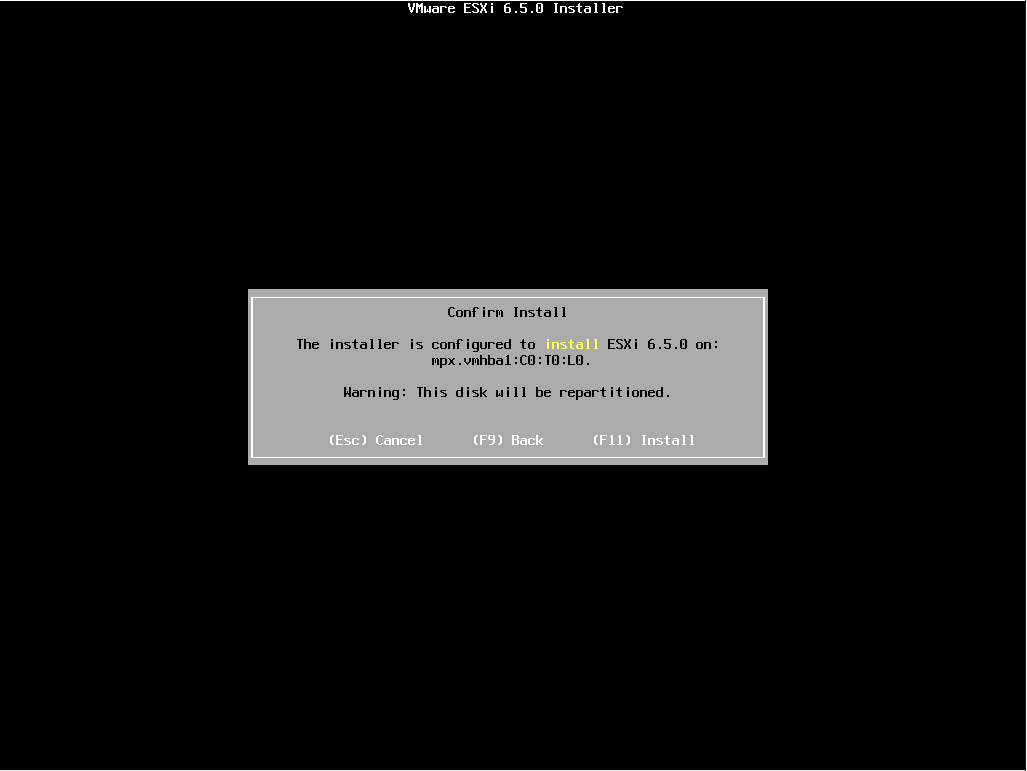
The install begins!
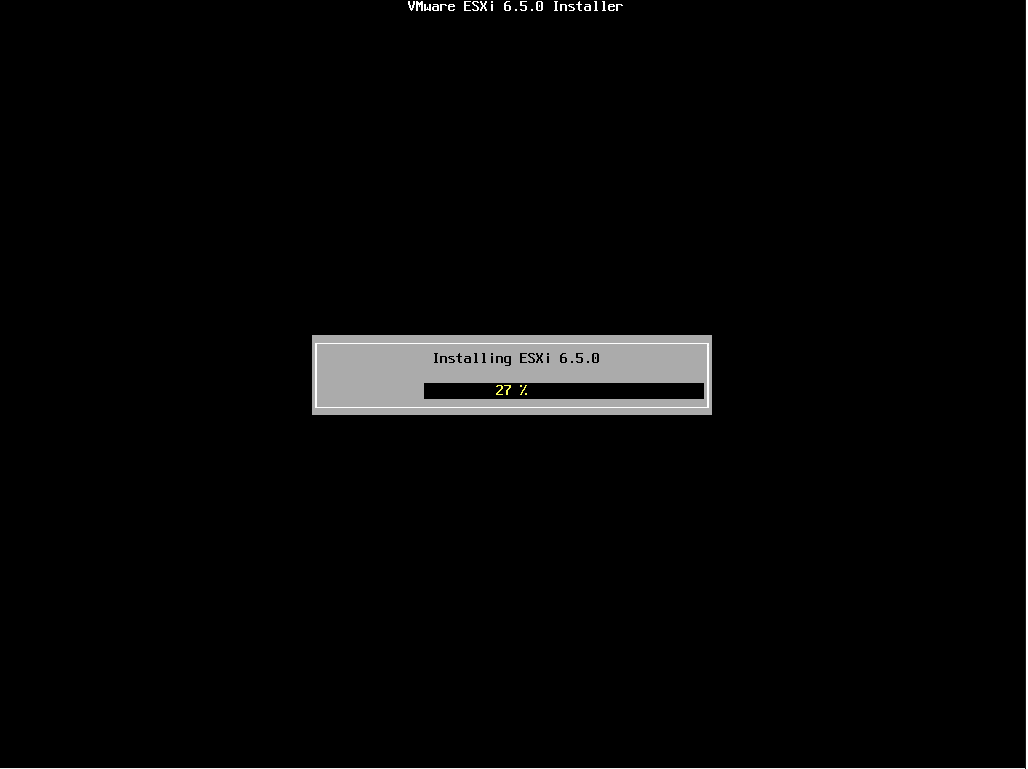
After the installer completes, we are prompted to reboot by pressing ENTER.
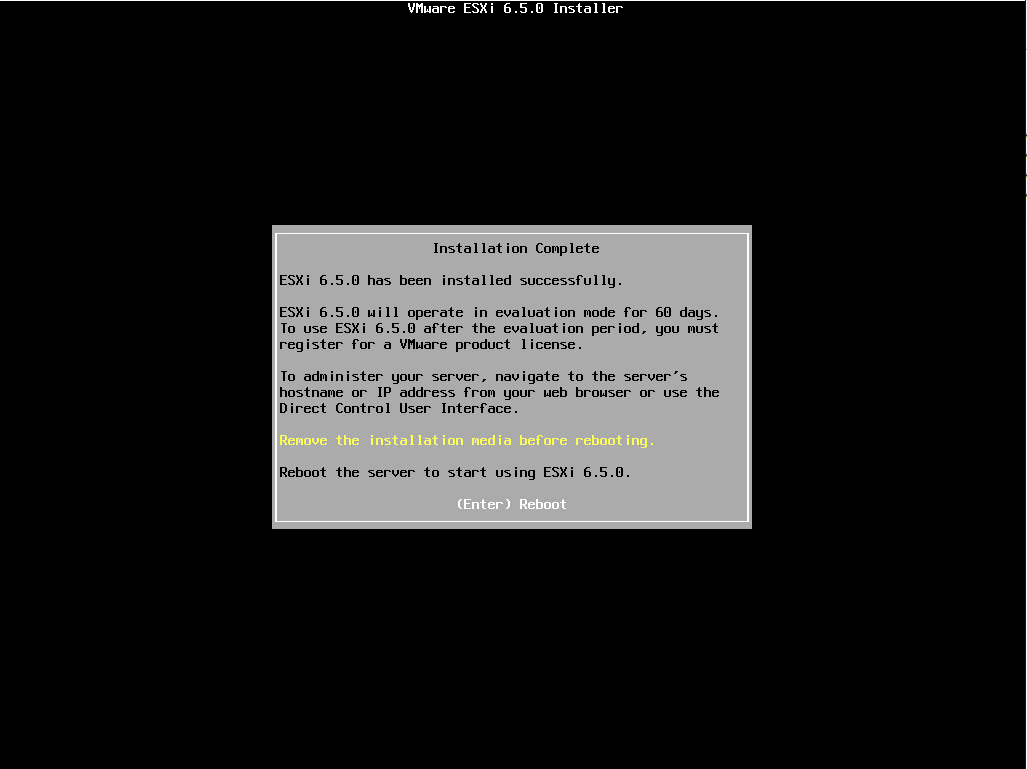
The host reboots.
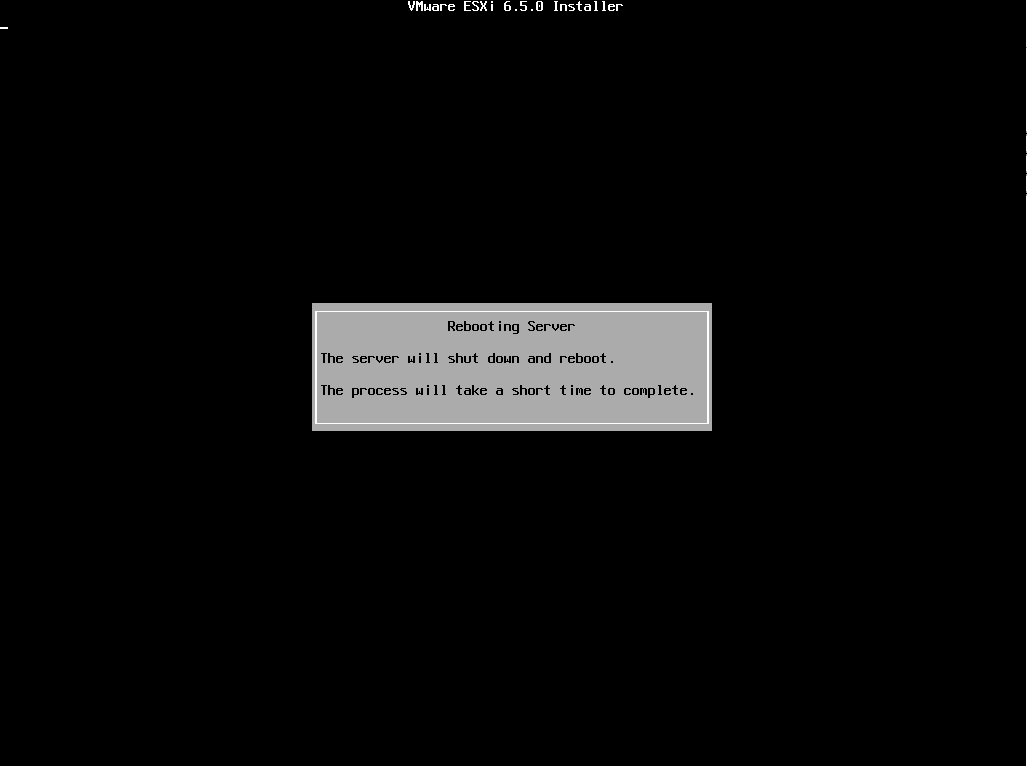
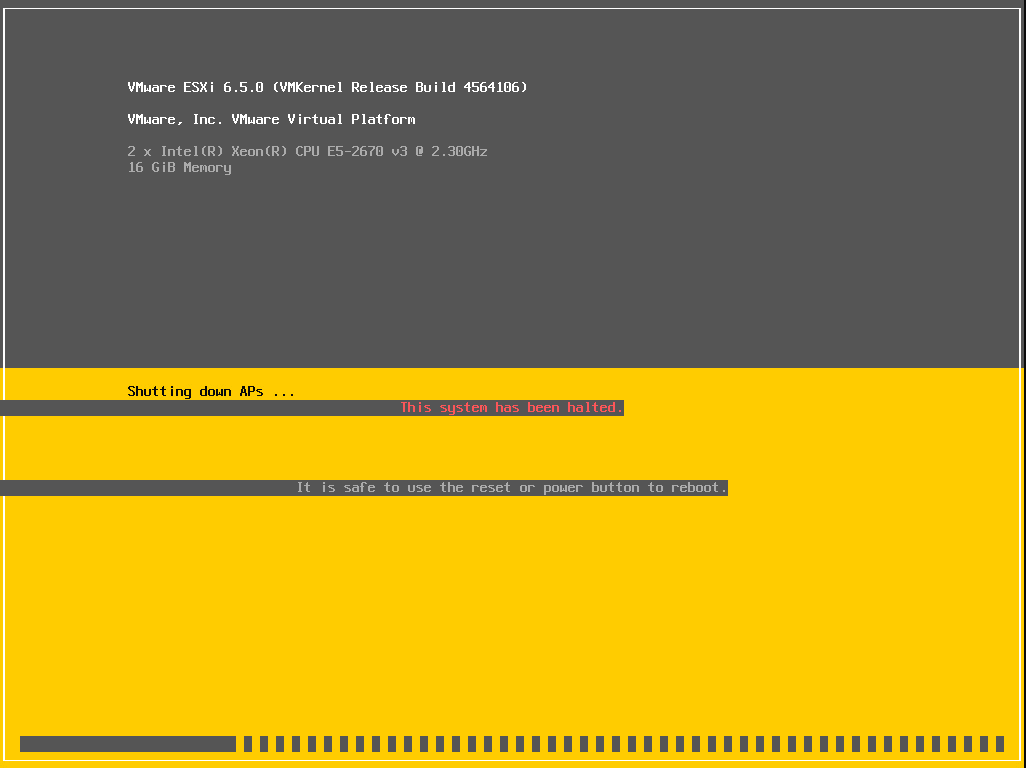
Below is a quick screen caught as the system was halted and reboot begins.
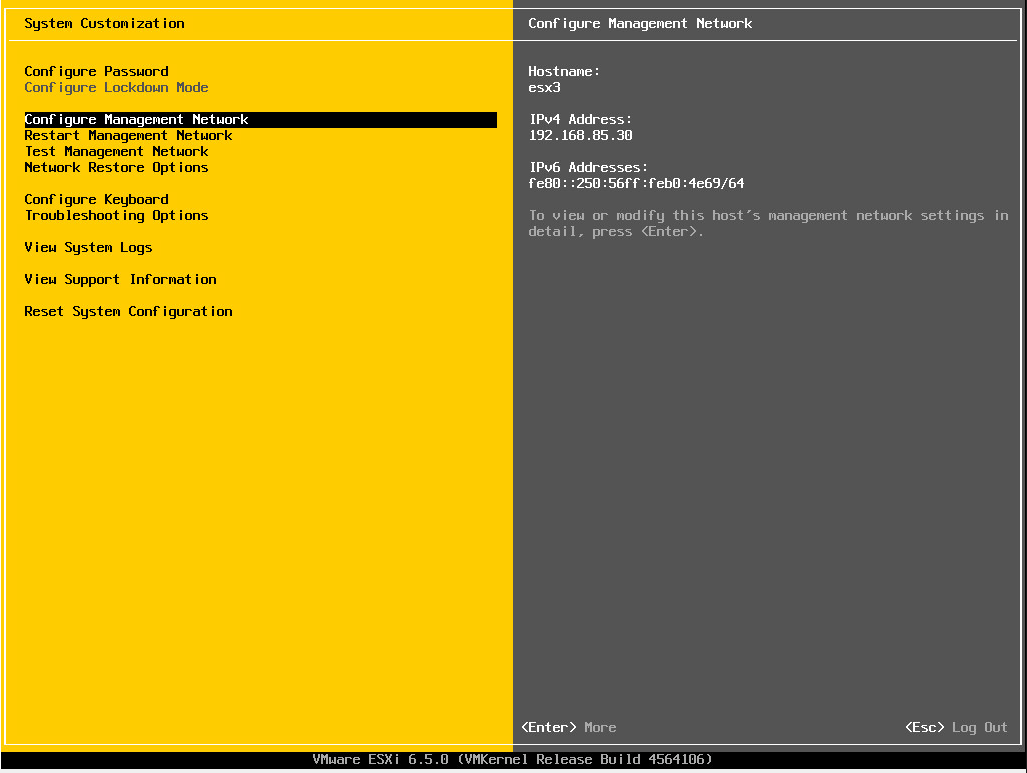
Alas, we are at the first DCUI spash screen for 6.5.
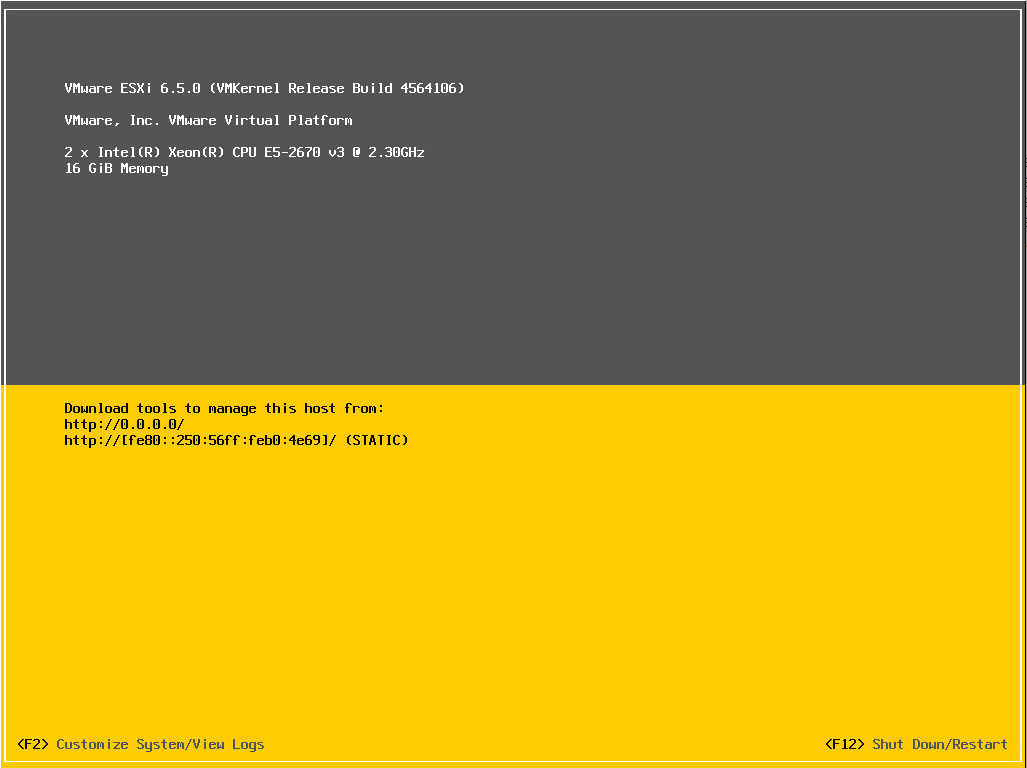
The DCUI menus look the same with no surprises here in the management network configuration or other options found in the menus.